SFTP Folder & Sync Reference
Overview
This page describes the folder structure of your Spatial Cloud SFTP environment and how synchronisation works. For initial connection setup, see the SFTP Setup Guide.
Folder structure overview
Transfer into and out of your Spatial Cloud environment is accomplished using two root folders:
- IN — files you upload to Spatial Cloud
- OUT — files generated by Spatial Cloud for you to download
File transfer IN
The IN folder contains four subfolders: Aerial, Database, Layers, and Web. Only files placed under these four subfolders will be synchronised into your Spatial Cloud environment. Files placed anywhere else will be ignored.
IN/Aerial
For upload of aerial imagery and other raster data.
IN/Database
For upload of your on-premise Spatial Cloud data warehouse backup. The file must be named IntraMapsSpatialCloud.bak
This is the primary data source for IntraMaps Public, IntraMaps Enterprise, MapBuilder, and other applications. A metadata table must be included in the warehouse to automate the data update process — see the Client Data Warehouse page for detail.
Database files are transferred to the Spatial Cloud environment nightly (SFTP v2), or are available immediately upon upload (SFTP v3).
IN/Layers
For upload of ad hoc or static spatial data that is not included in the snapshot SHP extracts from your data warehouse.
- SHP files must include an accompanying spatial index file (e.g. a QIX file). Uploading a .shp file alone is not sufficient.
- Data intended for use as selection layers must also include an attribute index on the mapkey field.
IN/Web
For two separate use cases:
- Print — upload print and report DOCX templates for use in IntraMaps configuration
- Web Documents / Images — create subfolders to upload icons, legend images, documents, and other files to be served via web links in IntraMaps configuration. Maintain the subfolder structure when uploading.
File transfer OUT
The OUT folder contains files generated by Spatial Cloud processes. Do not upload files to the OUT folder — they will not appear in IntraMaps or admin tools.
OUT/Reports
Contains CSV files generated by Spatial Cloud for your use:
- CatalogueExtract — a subset of fields from the Spatial Catalogue for reporting purposes. Also contains CatalogueID values for any customers with configured metadata — this is the only supported method for metadata queries in Spatial Cloud.
- CatalogueMatch — a list of common GIS format files (SHP, TAB, ECW, TIF) found under the /IN and /OUT SFTP folders that do not exist in the Spatial Catalogue. Use this to help identify obsolete or redundant files that may be removed via a support case.
Note: Files not directly referenced in the catalogue may still be indirectly referenced via a VRT or Tile Index layer. Treat this report as indicative only and cross-check carefully before removing any files. - DatabaseReport — a list of all tables, field names, and data types in your Spatial Cloud database. Useful for reporting and as a reference when building SQL queries in ConfigManager.
- DatabaseRowCount — row counts for all tables in your Spatial Cloud database. Use this to identify discrepancies after a data update. If counts appear incorrect, raise a support case to investigate.
OUT/Spatial
Contains all SHP files generated from your database layers, including:
- Standard Ci/CiA layers, created under the \SpatialCatalogue subfolder
- All folders and SHP files generated from your OGR_Metadata table
File synchronisation
SFTP v2
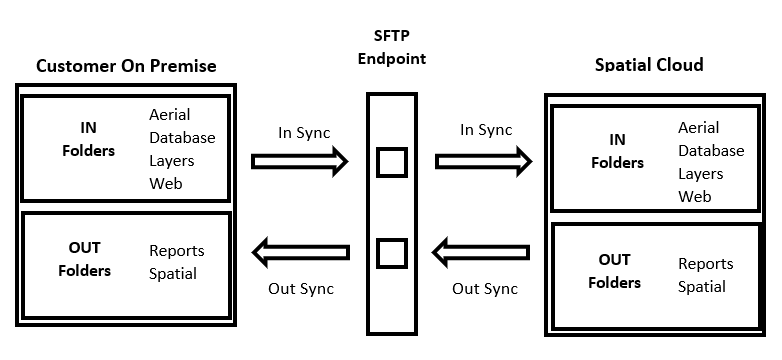
Files in the IN and OUT folders are synchronised with your Spatial Cloud environment every 5 minutes in both directions, with one exception:
- Spatial & Web files uploaded to the IN folder are moved every 5 minutes from the SFTP server into the client folders in the Spatial Cloud environment.
- Database (IN/Database) files are transferred nightly, not every 5 minutes.
For large files, the initial transfer may take longer than 5 minutes to complete. The regular sync cycle resumes once the transfer finishes.
SFTP v3
SFTP v3 provides direct read/write access to files and folders under the IN folder — there is no recurring sync process. Files can be read, written, moved, or deleted live.
Important: It is your responsibility to ensure that files and folders referenced in your IntraMaps configuration are not moved or deleted, as doing so will impact product function.
The OUT folder in SFTP v3 remains read-only. It is used for content generated by TechnologyOne only.