Microsoft Identity Configuration
Microsoft Identity Platform Configuration
IntraMaps supports Microsoft's cloud identity platform - Microsoft Entra ID - as an Identity Provider (IdP) for authentication and authorisation. Configuration is split between your organisation's identity platform administration (handled by your Network Administrator) and IntraMaps configuration (handled in ConfigManager).
Prerequisites
The following configuration must be completed in your organisation's Microsoft identity platform administration portal before configuring IntraMaps Identity Providers. This is typically performed by your organisation's Network Administrator. Refer to Microsoft's documentation for detailed steps.
Application Registration
- Create an App Registration for the IntraMaps application.
- Note the Tenant ID and Client ID from the App Registration. A Client Secret is also be required.
- Configure the following Redirect URLs (case sensitive, must be lowercase):
- https://<customercode>.spatial.t1cloud.com/spatial/intramaps/applicationengine/frontend/logon/
- https://<customercode>.spatial.t1cloud.com/spatial/mapmanager/logon/
- CIA Customers Only - include upgrade Redirect URLs (case sensitive, must be lowercase):
- https://<customercode>-upgrade.spatial.t1cloud.com/spatial/intramaps/applicationengine/frontend/logon/
- https://<customercode>-upgrade.spatial.t1cloud.com/spatial/mapmanager/logon/
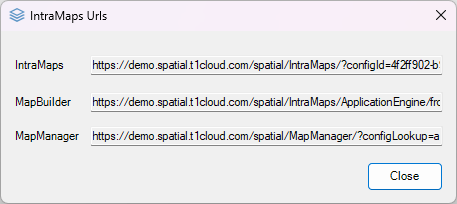
If you are unsure of the <customercode> to use, you can confirm by navigating to the Options>IntraMaps Urls menu option in ConfigManager.
Authorisation — App Roles
TechnologyOne recommends using App Roles to manage authorisation for IntraMaps and MapManager, as per Microsoft's guidance on application authorisation.
- Create an App Role for each IntraMaps module and one for MapManager. The value assigned to each role is what will be entered in ConfigManager.
- Assign users and groups to the appropriate App Roles via Enterprise Applications.
IntraMaps ConfigManager Configuration
Note: IntraMaps Configuration still uses the legacy Microsoft Identity Service name of AzureActiveDirectory. This will be updated from the 26B release.
Once the Microsoft identity platform prerequisites are complete, configure in IntraMaps ConfigManager as follows:
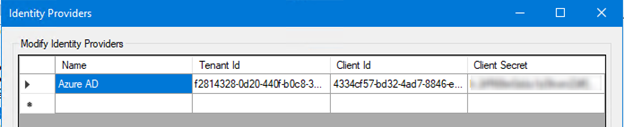
- In ConfigManager, navigate to Security > Identity Providers and add the Identity Provider, entering the Tenant ID, Client ID, and Client Secret obtained during App Registration.
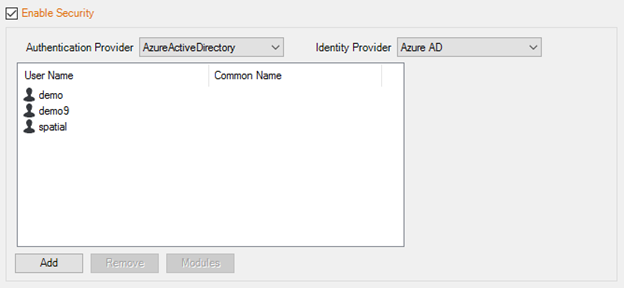
- In the IntraMaps Project, set the Authentication Provider to AzureActiveDirectory and select the Identity Provider configured above.
- Add Users or App Roles, to the authorised users list:
- User — enter the users display name as configured in the identity platform (e.g. John Smith, not jsmith@somecorporation.com)
- App Role — enter the role value defined during App Role setup (e.g. intramaps_property_role_value)
Troubleshooting
If users see an authorisation error on login, check the following:
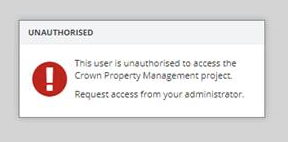
The user has been assigned to an App Role that is authorised for at least one IntraMaps module in ConfigManager.
The user's display name in IntraMaps matches exactly how it appears in the identity platform (e.g. John Smith rather than jsmith).